Settings
This is a test version. Screens and features will change as testing continues, and this guide may lag behind the app. Pictures use made-up sample data.
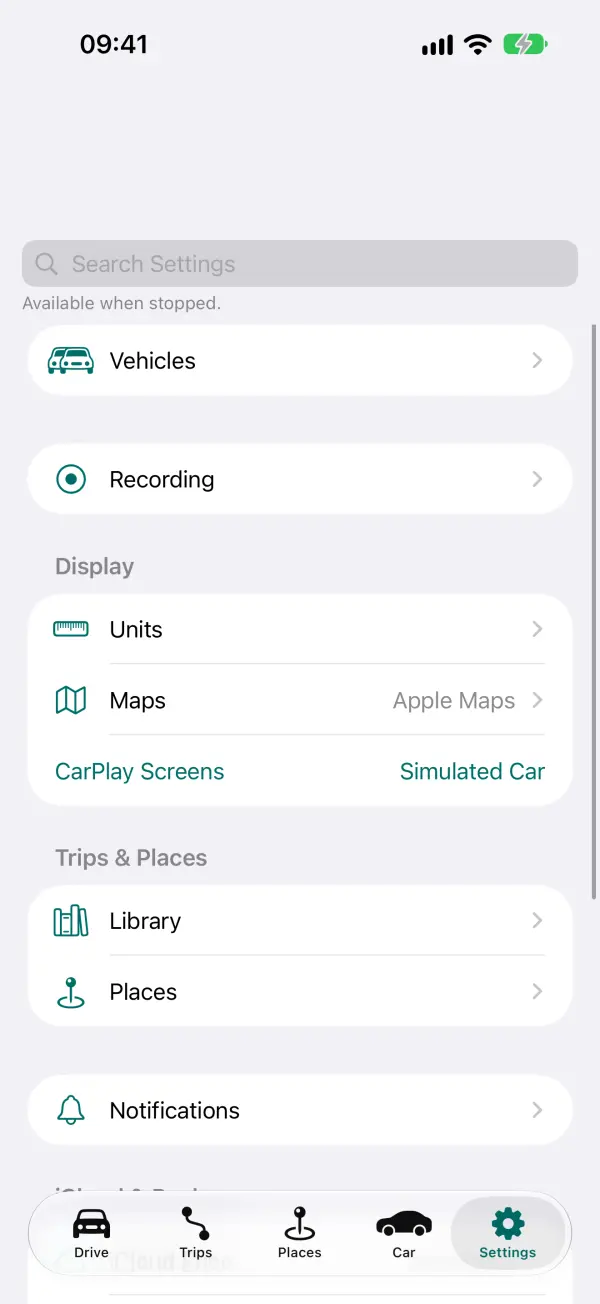
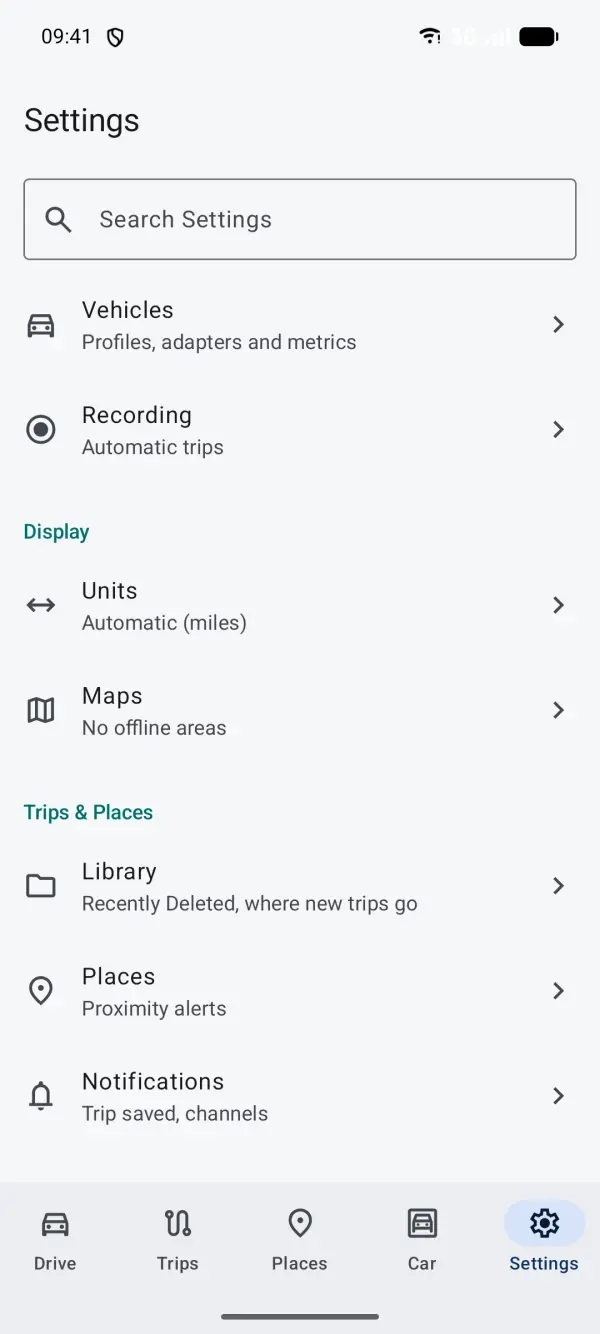
Searching Settings
The search field at the top finds any setting by name or a few related words, and shows which screen it's on. Tap a result to go there. For safety, you can only type in it while the car is stopped.
Vehicles
Your cars, each with its own adapter, readings and tiles.
- Add a vehicle and pair its OBD adapter. With the engine running, the app scans which readings the car gives and lets you choose which to record.
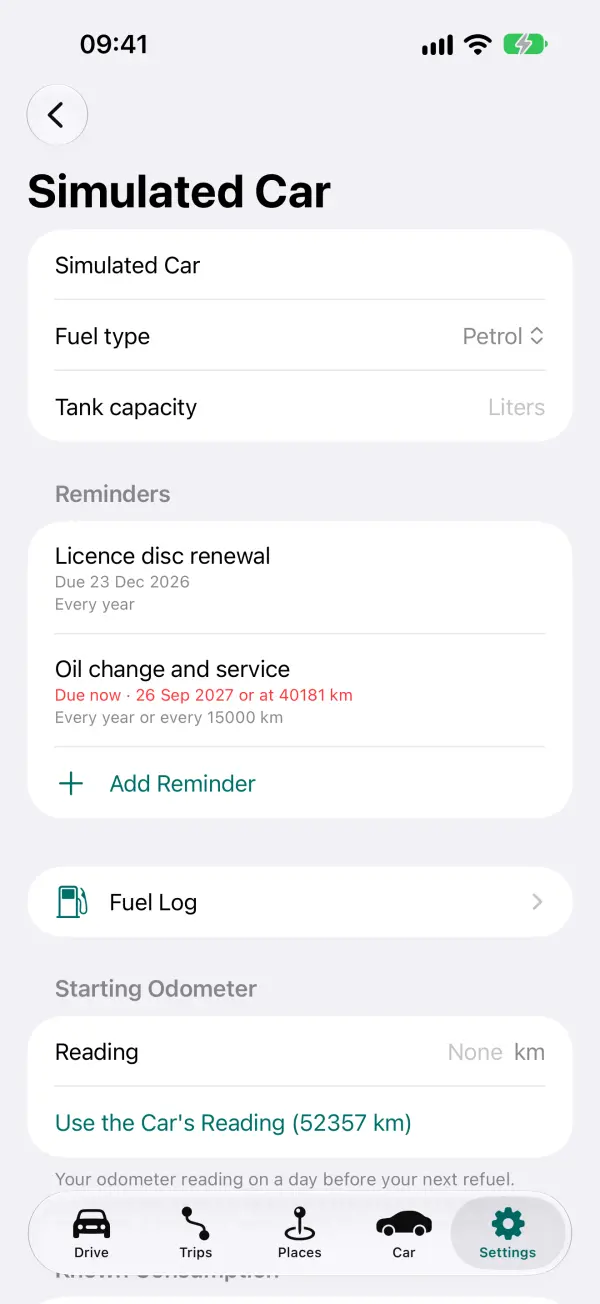
- Tap a vehicle for its details: the adapter, the readings recorded, the Drive tiles, fuel type and tank size, your own known fuel consumption, Fuel Log, Expenses and reminders. iPhone: also its CarPlay Screens.
- Reconnect & Rescan: run the readings scan again, with the engine running.
- Default Vehicle shows when you have two or more. You can also pick the vehicle from the OBD status on Drive.
- No adapter yet? The Simulated Car lets you try the app with made-up readings.
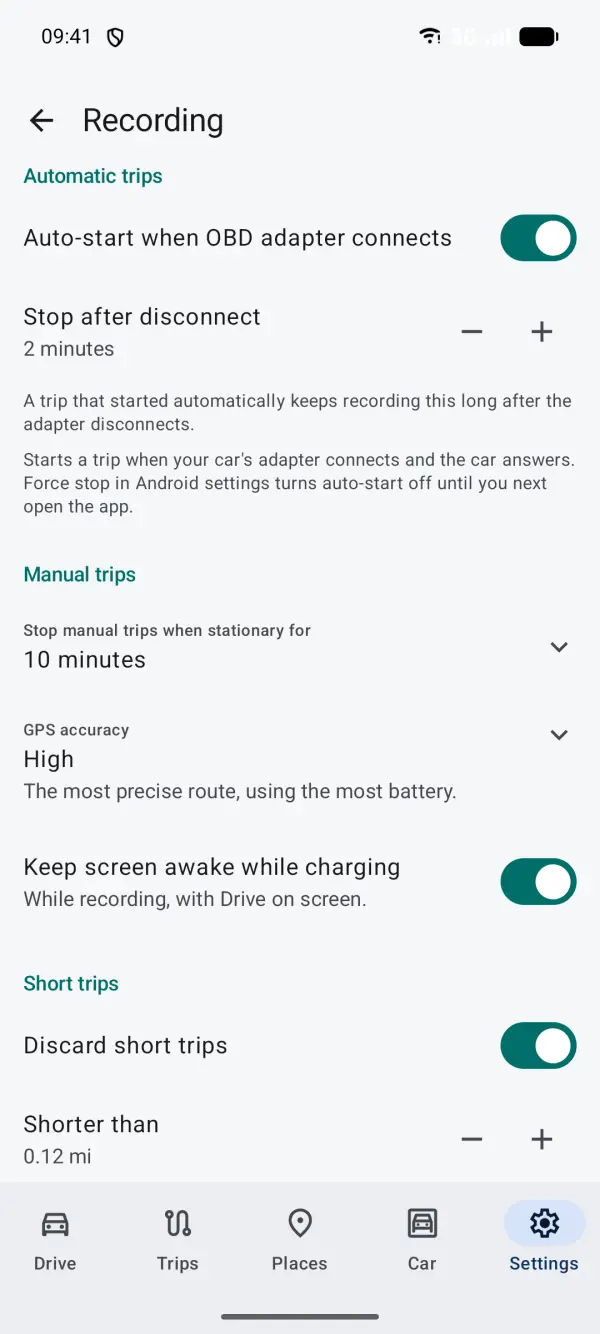
Recording
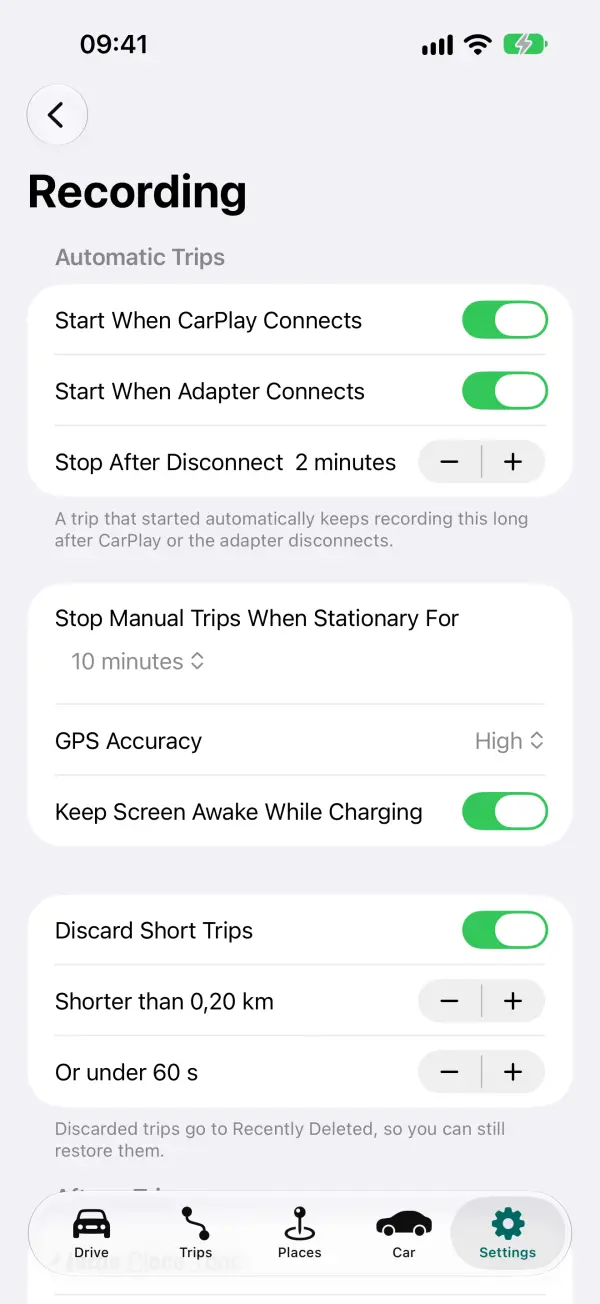
How trips start, stop and get their names. The Recording guide explains each in more detail.
- Automatic trips: start when the adapter connects (and, on iPhone, when CarPlay connects), and how long the grace period is (2 minutes to begin with).
- Stop manual trips when stationary for: 10 minutes to begin with.
- GPS accuracy: High (to begin with), Balanced or Low Power. Lower uses less battery but draws a rougher route.
- Keep screen awake while charging, during a trip with the app open.
- Discard short trips: under 200 m or 1 minute, to begin with.
- Merge close trips: Ask, Always or Never, and the time between trips.
- Trip names: Suggest & Ask, Suggest Automatically, or Date & Time Only, and whether to use your places in names.
- Android: also Background recording (battery settings, see Troubleshooting) and Add to Quick Settings for the Start/Stop and Mark this spot tiles.
Display
- Units: Automatic follows your region, or choose Metric, Imperial, or each unit on its own (distance, speed, temperature, pressure, fuel economy, volume).
- Maps: Offline Areas (see Offline maps), the route colour, and Show Trips on Drive Map. iPhone: also the map provider (Apple Maps or an open map) and style.
- iPhone: CarPlay Screens for the vehicle in use (see CarPlay).
Trips & Places
- Library: how long Recently Deleted keeps trips (30 days to begin with), and which folder new trips go to.
- Places: show places on maps, the default size of a new place, proximity alerts (off to begin with) with their distance and sound, and privacy zones on export.
Notifications
- Trip saved: a notification to rename a trip that ended with the app in the background.
- iPhone: Live Activity: the trip on the Lock Screen and in the Dynamic Island.
- Android: the app's notification channels and whether each is on.
iCloud & Backup (iPhone), Backup (Android)
iPhone:
- iCloud Sync: keeps your trips, vehicles and places in step across your Apple devices, in your own private iCloud.
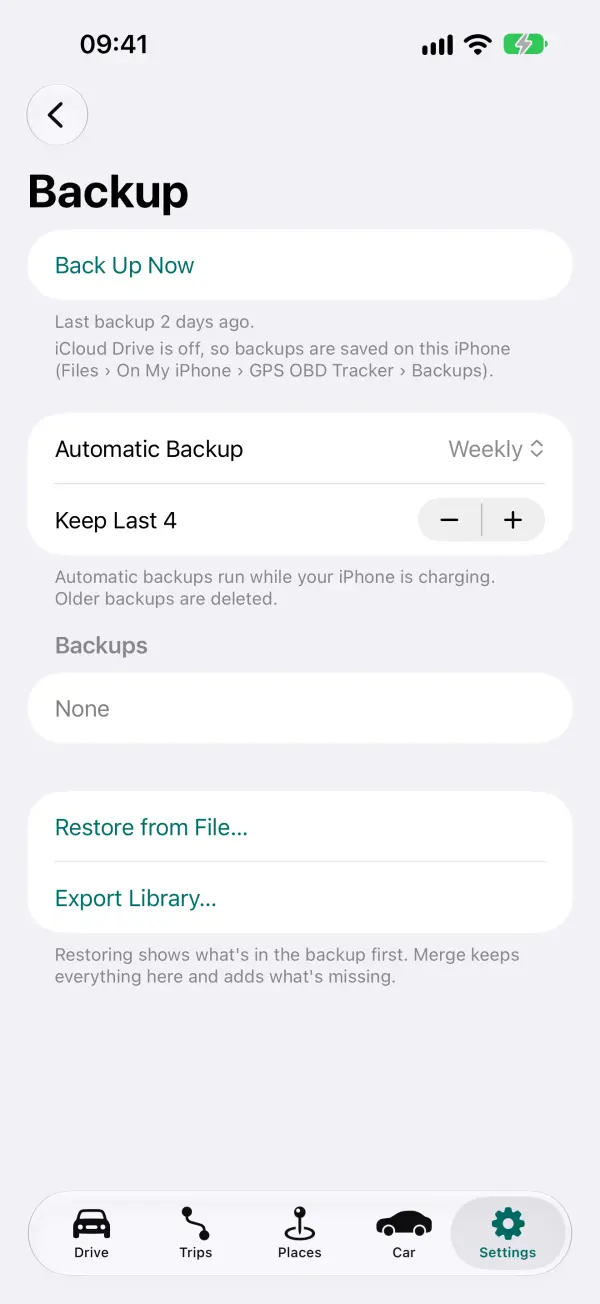
- Backup: Back Up Now, automatic backups (weekly to begin with, while charging) to iCloud Drive, Restore from File, and Export Library.
Android: there's no sync between phones. Backup saves to a folder you choose (pick one in the cloud if you want an off-phone copy), weekly to begin with, keeping the last 4. It also restores and exports your library.
Restoring shows what's in the backup first. Merge keeps everything on the phone and adds what's missing.
Advanced
- Simulated data: try the app without a car. Simulated OBD data can be Off, When no adapter is available, or Always, with a car profile and a drive cycle. Simulated readings are always labelled SIMULATED and never mixed with real ones. Remove Simulated OBD Data clears them from trips, keeping the GPS.
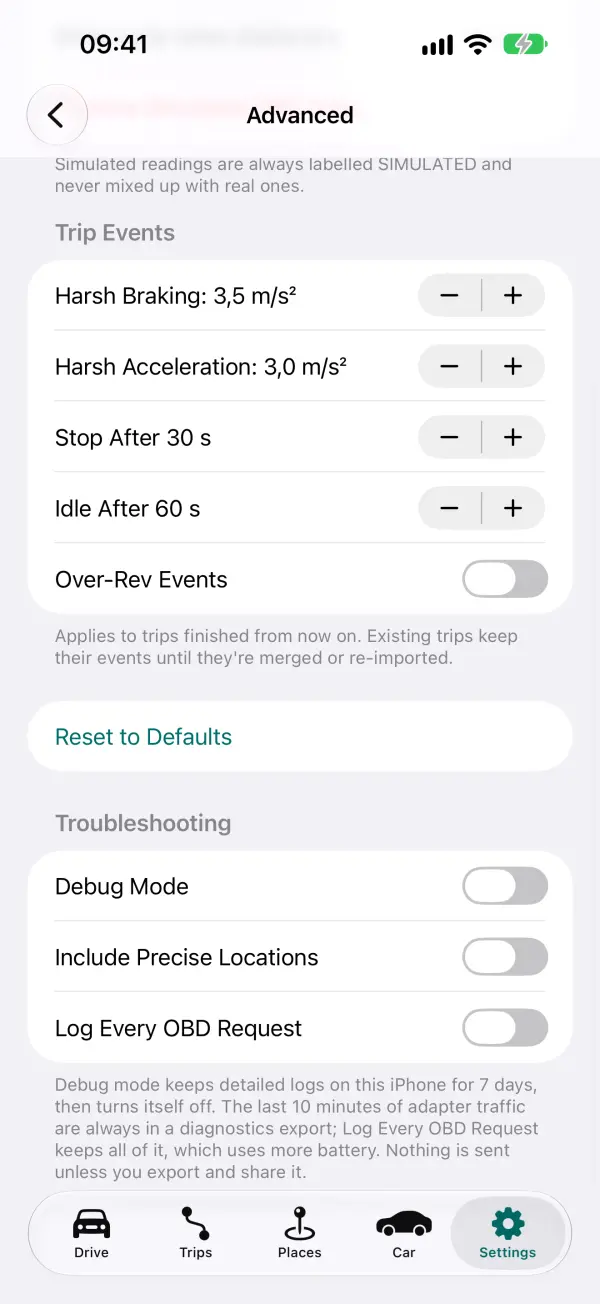
- Trip Events: how hard braking or acceleration must be to count as harsh, and when stops and idling count. Over-rev events are off to begin with.
- Troubleshooting: Debug Mode (on during testing), Include Precise Locations and Log Every OBD Request (uses more battery), and Diagnostics, where you export a diagnostics file (see Troubleshooting).
- Sample data: Diagnostics has Add Sample Data to Simulated Car, which adds about 3 months of made-up trips, refuels and expenses so you can explore the Car tab and Fuel Log. Remove Sample Data takes away only that.
- Android: also OBD requests (asking for several readings at once; leave it on Automatic unless we ask).
About
The app version, the privacy summary, map and software licences, and Send Feedback, which starts an email to gpsobdtracker@themains.tech with the version filled in. Include the version when you report a problem.
Reset All Settings
At the bottom of Settings. It puts every setting back to how it started. Your trips, places and vehicles aren't affected. Many screens also have their own Reset to Defaults.
Android: Show Setup Again runs the first-time setup again (location, adapter, notifications, battery and backup).