Recording and auto-start
This is a test version. Screens and features will change as testing continues, and this guide may lag behind the app. Pictures use made-up sample data.
How a trip starts
A trip is one recorded drive, from start to stop. It can start by itself, or you can start it.
When the OBD adapter connects
If your vehicle has an OBD adapter paired in the app, a trip starts by itself when you start the car. The app waits for the car to answer, not just for the adapter: many adapters stay powered with the engine off. The trip starts at the car's first answer.
- iPhone: iOS reconnects to the adapter when the car powers it, and opens the app in the background if needed. You don't have to open the app.
- Android: when the phone sees the adapter, the app shows a "Waiting for car" notification until the car answers. Then the trip starts.
This is the most reliable way to record every drive without touching the phone.
When CarPlay connects (iPhone)
iPhone: a trip also starts when CarPlay connects. If you use both CarPlay and an adapter, the trip goes on until both have gone.
Android: there is no Android Auto app, so this doesn't apply.
Turning automatic trips on or off
Settings → Recording → Automatic Trips has a switch for each, on to begin with:
- iPhone: Start When Adapter Connects and Start When CarPlay Connects.
- Android: Auto-start when OBD adapter connects.
Automatic trips need location access all the time:
- iPhone: Location set to Always.
- Android: Location set to Allow all the time. See Troubleshooting.
Starting a trip yourself
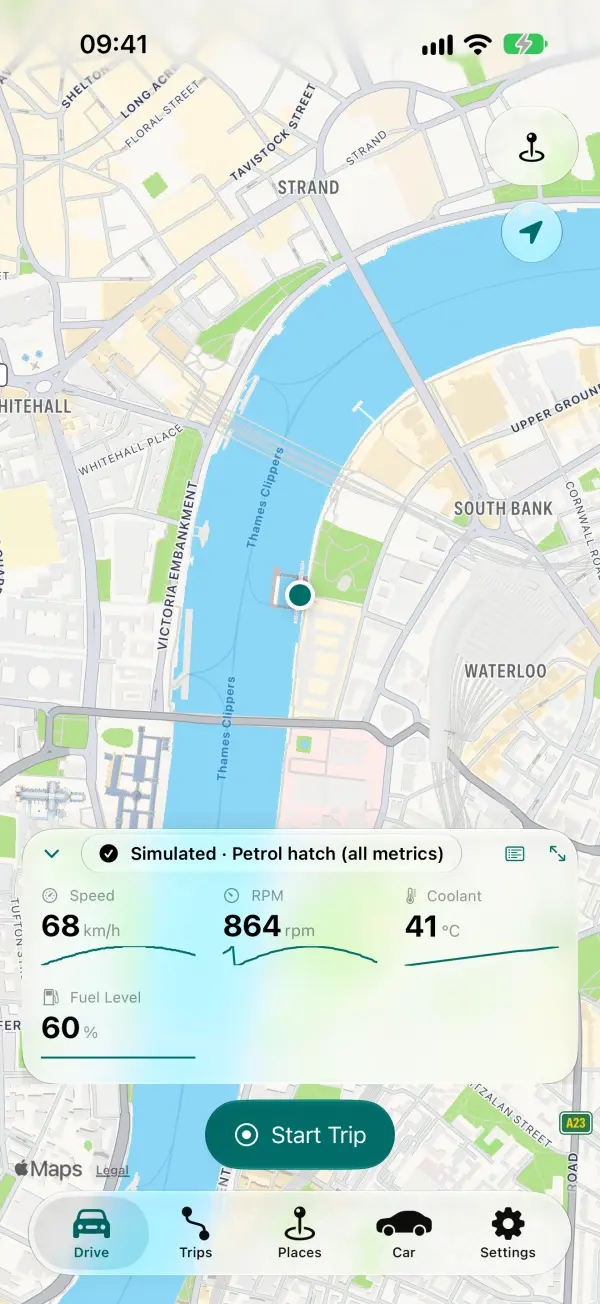
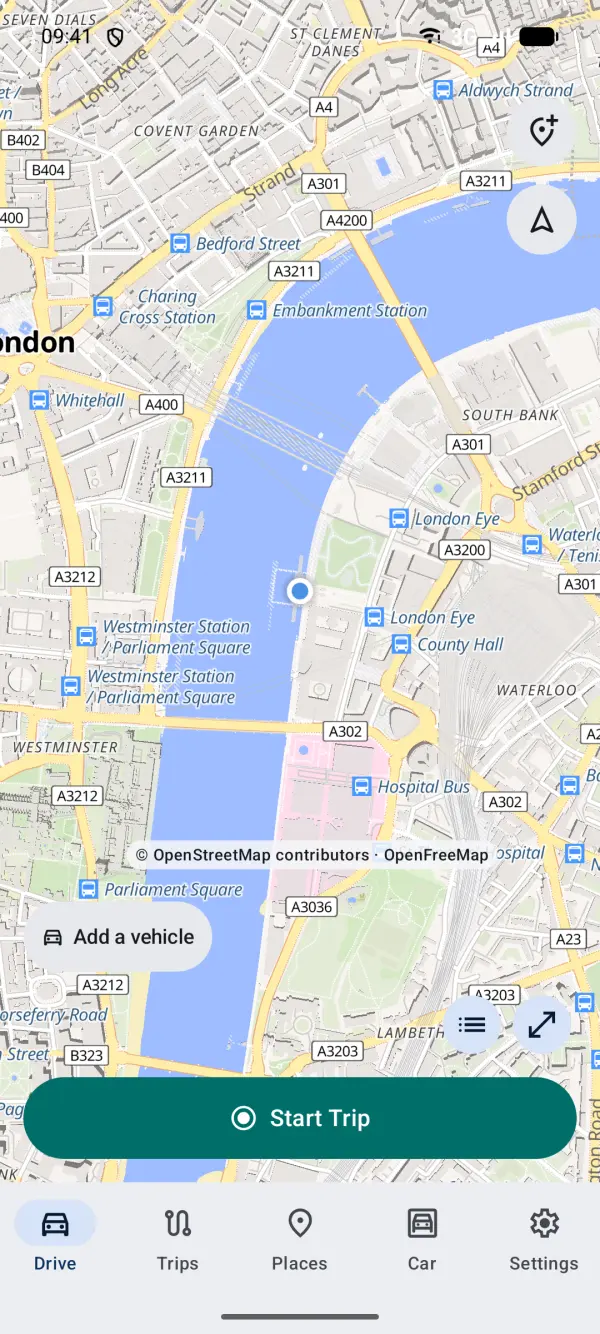
- Tap Start Trip on the Drive tab.
- iPhone: also from Control Centre, Siri or Shortcuts, and from CarPlay.
- Android: also from the Quick Settings tile or the app's shortcuts (touch and hold the app icon).
How a trip stops
Automatic trips
When you switch the engine off, the car stops answering. After 30 seconds of silence, or as soon as the adapter is gone, the grace period starts. When it runs out, the trip is saved.
The trip ends at the car's last answer. Anything recorded after that, while you sat parked, is dropped.
Trips you started yourself
A trip you started yourself doesn't stop when the adapter or CarPlay goes. It stops when you tap Stop, or after the car has been still for a while (10 minutes to begin with; change it in Settings → Recording → Stop Manual Trips When Stationary For).
The grace period
The grace period is the wait after the adapter is lost or the car goes quiet, before an automatic trip ends. It is 2 minutes to begin with, and you can set it from 0 to 10 minutes in Settings → Recording.
If the car answers again within that time (say you stalled, or stopped for fuel with the engine on), the same trip carries on. There's no gap and no second trip.
Stop and Undo
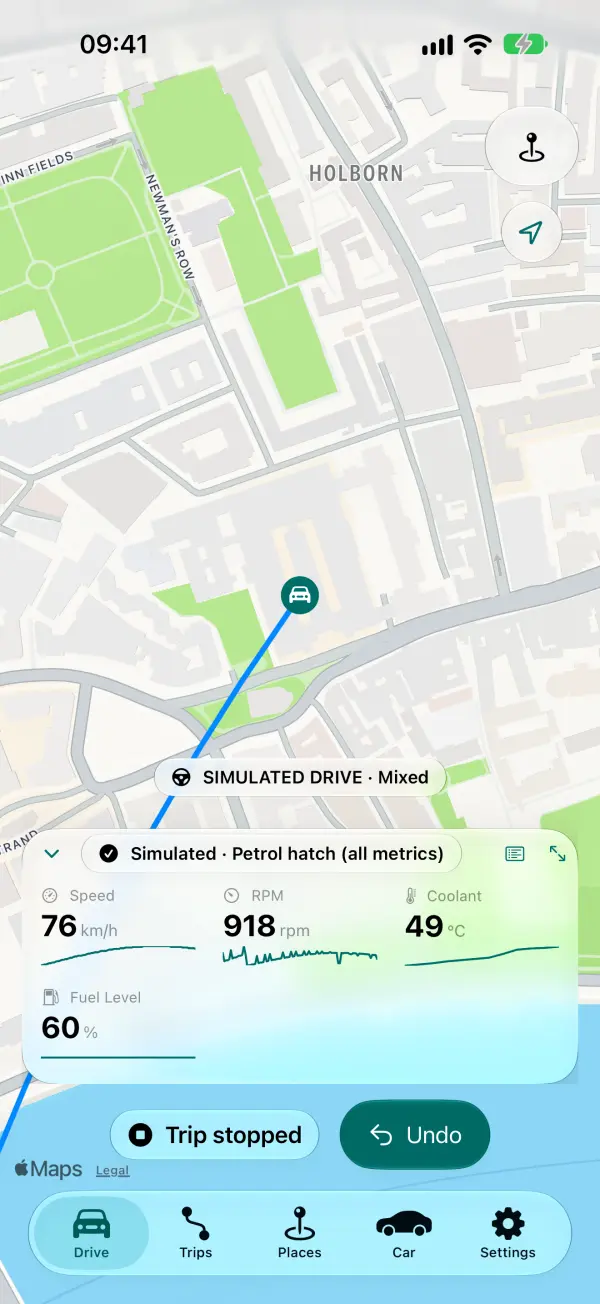
Tapping Stop doesn't ask "Are you sure?". Instead, for 10 seconds you'll see Trip stopped · Undo. Tap Undo and the same trip goes on with nothing lost. If you leave it, the trip ends at the moment you tapped Stop.
- On the Drive tab, Stop Trip sits under the tiles.
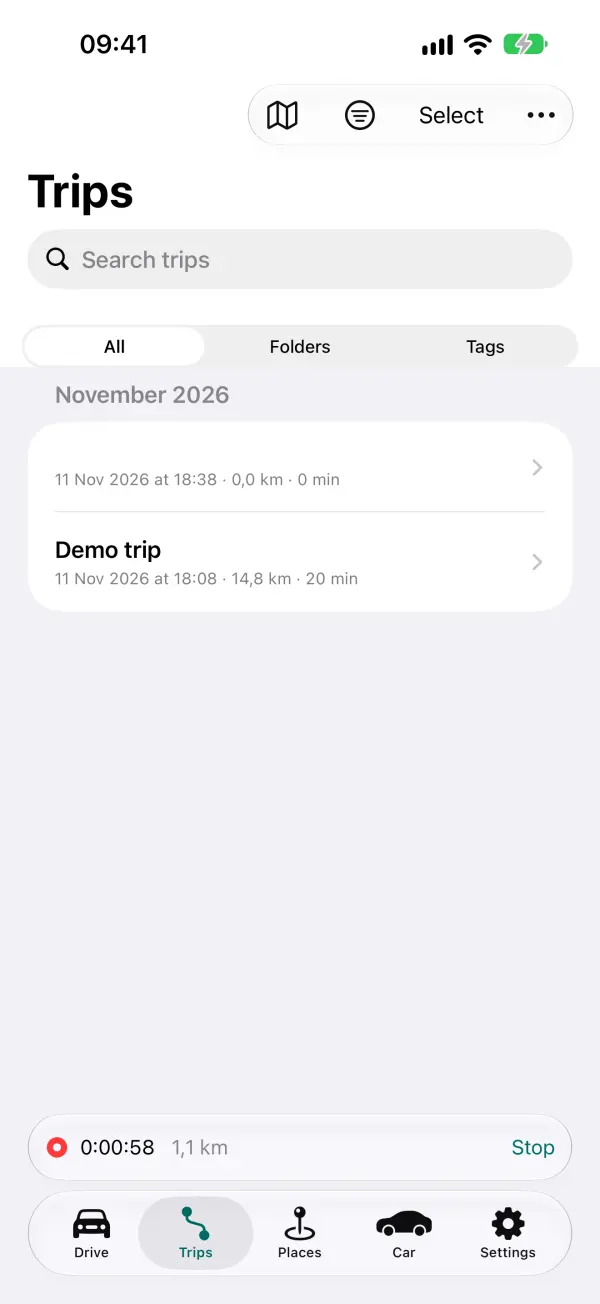
- On the other tabs, a recording bar shows the time and distance with a Stop button.
- iPhone: Stop on the Lock Screen, in the Dynamic Island or on CarPlay works the same way; CarPlay shows Undo Stop.
- Android: Stop in the notification, the tile or a shortcut works the same way; Undo is in the app.
Short trips
Moving the car on the drive shouldn't fill your list. So a trip shorter than 200 m or 1 minute is put in Recently Deleted instead of your trips.
- Find it in Trips → Folders → Recently Deleted, and tap Restore if you want it.
- Recently Deleted keeps trips for 30 days (Settings → Library).
- Change the limits, or turn this off, in Settings → Recording → Discard Short Trips.
- A trip where GPS was lost is never thrown away as short.
Merging trips
If a new trip starts within 5 minutes of the last one ending, in the same vehicle, the app asks "Merge with the previous trip?" when it ends. That joins a quick stop into one trip.
- Settings → Recording → Merge Close Trips: Ask (to begin with), Always or Never, and the time window.
- CarPlay never asks while you drive; the question waits for the phone.
- To merge trips later: in Trips, tap Select, pick two or more, then Merge.
- Changed your mind? Open the merged trip and tap Undo Merge, while the original trips are still in Recently Deleted.
Trip names
Each trip gets a suggested name from where it started and ended, like "Home → Work · Tue 08:14". Your saved places are used first, then town names.
- With the app open and the car stopped, a sheet offers the name, with Use This Name, Rename or Later.
- With the app in the background, a "Trip saved" notification lets you rename it or keep the name.
- The app never asks you to type while the car is moving.
- Change this in Settings → Recording → Trip Names.
With the phone locked
Trips keep recording with the screen off and the phone in a pocket or mount.
- iPhone: the trip shows on the Lock Screen and in the Dynamic Island (the Live Activity), with a Stop button. CarPlay works with the phone locked.
- Android: a notification shows the trip, with Stop and Mark spot.
Two things stop automatic trips until you next open the app:
- iPhone: swiping the app away in the app switcher (force-quitting it). Just leave it in the background.
- Android: Force stop in Android's settings. Also check the battery settings, as some phones stop apps in the background.
GPS Lost and other banners
- GPS Lost: the car is moving but no GPS position is arriving (a tunnel, a car park). The trip keeps recording and the banner clears when GPS comes back. The trip is marked "GPS lost", and its distance across the gap comes from the car's speed where it can.
- GPS Isn't Recording: the phone is refusing location. Follow the banner: open the app, or turn location back on in Settings.
What "car not answering" means
It means the adapter is connected, but the car isn't replying to it. Usually that's simply because the engine is off: many adapters stay powered with the engine off.
- No trip running: nothing to do. The app waits for the engine to start.
- During a trip: the OBD status on Drive says "no live readings (car not answering)". The trip records GPS only until the car answers again.
- When setting up an adapter: the app asks "The car isn't answering. Is the engine running?". Start the engine and tap Try again, or save and finish later.
If it carries on with the engine running, see Troubleshooting.