Troubleshooting and feedback
This is a test version. Screens and features will change as testing continues, and this guide may lag behind the app. Pictures use made-up sample data.
Car not answering
"Car not answering" means the adapter is connected but the car isn't replying to it. With the engine off, that's normal. (More in Recording and auto-start.)
If you see it with the engine running:
- Tap the OBD status on the Drive tab. Its menu says what's wrong and since when.
- If it asks "Is the ignition on?", check the ignition is on and the engine is running.
- If it says "Check the adapter", the engine seems to be running but the car still isn't answering. Try the adapter tips below.
- The trip keeps recording GPS meanwhile, and car readings come back by themselves when the car answers.
Adapter tips
Bluetooth LE or Classic
OBD adapters use one of two kinds of Bluetooth:
- Bluetooth LE (often sold as "BLE" or "Bluetooth 4.0"): works on iPhone and Android.
- Classic Bluetooth: works on Android only. iPhones can't use these adapters. Android may ask for a PIN when pairing: it's usually 1234 or 0000.
Pair it in the app
Pair the adapter from the app: Settings → Vehicles → your vehicle → Pair Adapter. With the engine running, the app then scans which readings your car gives.
Unplug and plug it back in
Adapters sometimes get stuck. If readings stop and don't come back:
- Unplug the adapter from the car's OBD socket.
- Wait about 10 seconds.
- Plug it back in, with the engine running.
The app reconnects by itself. If a trip was running, it carries on.
Trips don't start or stop by themselves
- Check Settings → Recording → Automatic Trips is on for the adapter (and CarPlay on iPhone).
- Check the vehicle has its adapter paired.
- Allow location all the time.
- iPhone: don't swipe the app away in the app switcher. iOS won't start a force-quit app in the background until you open it again.
- Android: don't use Force stop, and check the battery settings.
- A trip ends a while after you switch off: that's the grace period (2 minutes to begin with).
Location: allow it all the time
To start trips by themselves with the app closed, the app needs your location all the time. Your location stays on your phone (see the privacy policy).
- iPhone: Settings → Apps → GPS OBD Tracker → Location → Always, with Precise Location on.
- Android: Settings → Apps → GPS OBD Tracker → Permissions → Location → Allow all the time, with Use precise location on. The app explains this first when you turn on automatic trips.
With location allowed only while using the app, trips you start yourself still record, but automatic trips can't start. The Drive tab shows a banner when this is the case.
Android: battery settings
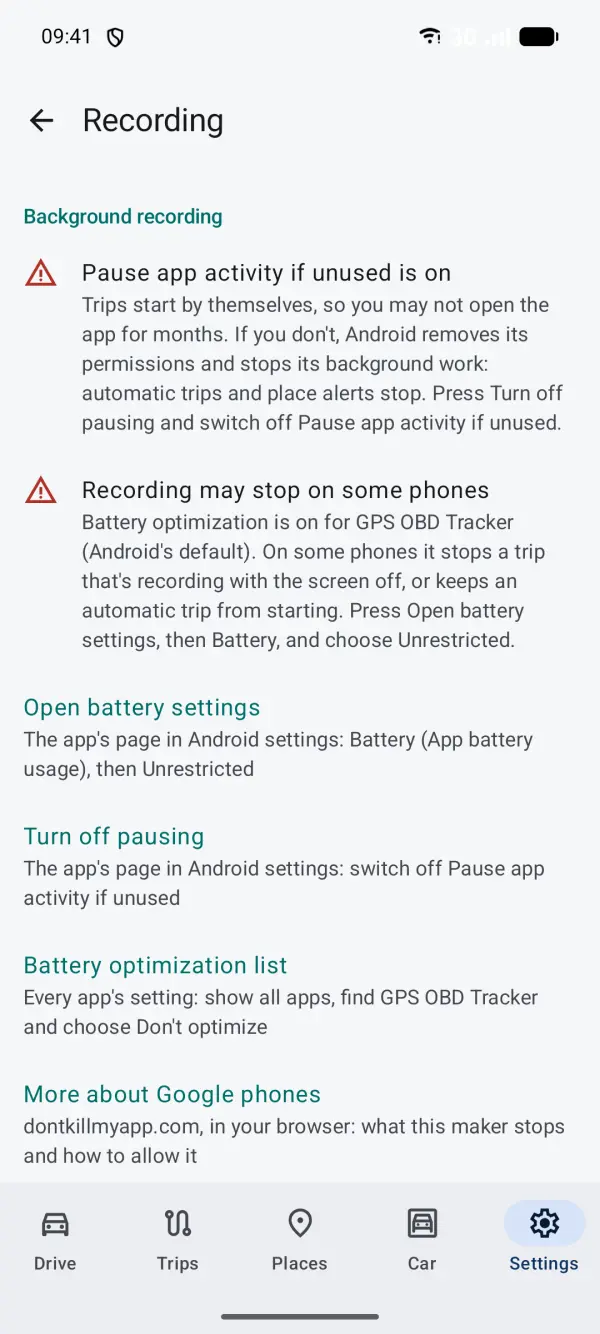
Android, and some phone makers in particular, stop apps in the background to save battery. That can stop a trip early, or stop it starting at all. The app shows what it can check in Settings → Recording → Background recording, with buttons that open the right pages.
All Android phones
- Allow background use: press Open battery settings, then Battery (App battery usage), and choose Unrestricted.
- Don't optimise: or use Battery optimisation list, show all apps, find GPS OBD Tracker and choose Don't optimise.
- Pausing unused apps: if the app asks, press Turn off pausing and switch off Pause app activity if unused. Trips start by themselves, so you may not open the app for a long time.
Samsung
- Set battery use to Unrestricted, as above.
- Press Samsung battery settings, then under Background usage limits add GPS OBD Tracker to Never sleeping apps.
OnePlus
- Set battery use to Unrestricted, as above.
- Press Auto-launch and turn it on for GPS OBD Tracker, so trips can start by themselves.
The app also links to dontkillmyapp.com for your phone's maker, which explains each maker's own settings.
Export diagnostics
If something goes wrong, a diagnostics file helps us most. Export it soon after the problem, as it holds the last few minutes of adapter traffic.
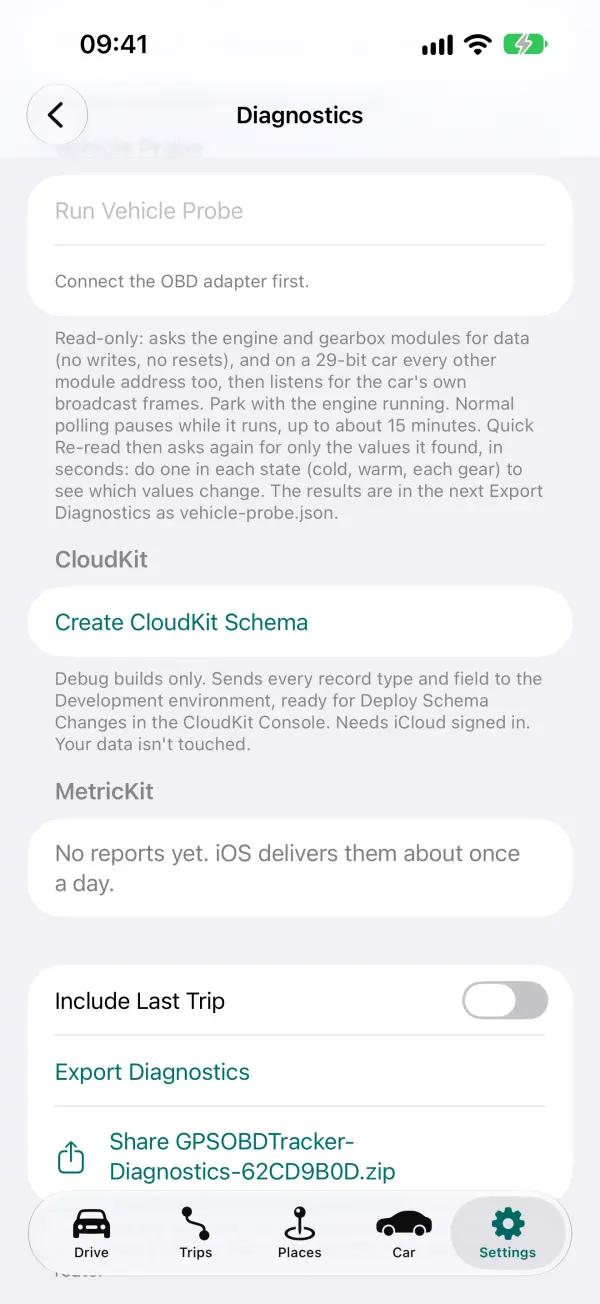
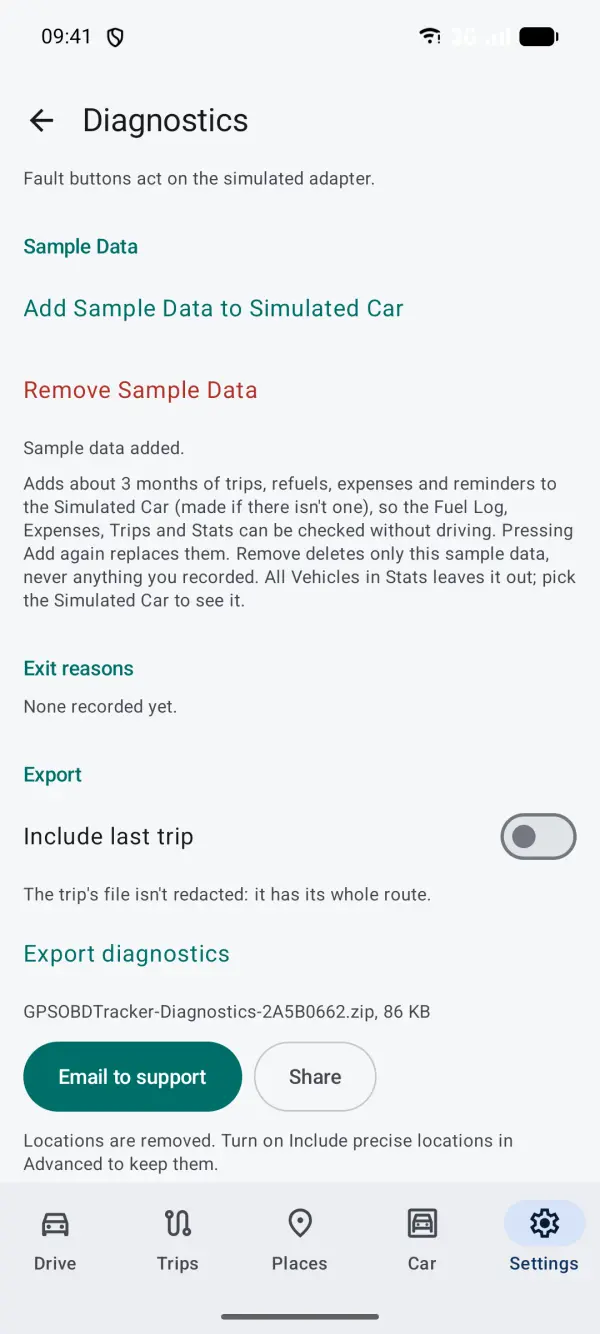
- Open Settings → Advanced → Diagnostics.
- Scroll down and tap Export Diagnostics (Android: Export diagnostics). Turn on Include Last Trip first if the problem was on a trip.
- When it's ready, tap Email to Support or Share, and send it to gpsobdtracker@themains.tech.
- Locations are removed unless you turn on Include Precise Locations in Advanced. A last trip you include has its whole route.
- You see and approve everything before it's sent. Nothing is sent by itself.
- During testing, debug mode is on, so Diagnostics shows in Advanced. If it's missing, turn on Debug Mode in Settings → Advanced.
Send feedback
Tell us what went wrong, what you expected, and roughly when it happened. A screenshot helps.
- iPhone (TestFlight): take a screenshot, tap it, then tap Share → Share Beta Feedback. Or open the TestFlight app, choose GPS OBD Tracker and tap Send Beta Feedback.
- Both phones: email gpsobdtracker@themains.tech, or use Settings → About → Send Feedback, which starts the email with the app version.
- For a problem with recording or the adapter, add a diagnostics file.